SRX Dynamic IP Objects aka Feed-server
For a long time, the SRX has been able to periodically download IPv4 and IPv6 prefixes from external sources and map them to objects used in firewall policies. Essentially, this is the easiest way to automate the firewall rule base when rules act as templates, and IP sources or destinations are dynamic objects influenced by external automation. This Tech Post aims to provide a quick-start guide.
Introduction
In environments with frequent changes to firewall rule base objects, where a static address book would be excessively large and where DNS objects do not apply, a viable option is the use of dynamic IP objects fetched by the SRX from an HTTPS server. The scale depends on the SRX platform; generally, hundreds of thousands of IPv4 and IPv6 prefix records can be loaded onto the firewall and updated periodically---without a commit operation. The interval for retrieving IP prefixes from the server is at minimum every 30 seconds, allowing changes to security policies to be implemented relatively quickly. The process is optimized by the SRX checking whether the file containing the prefixes has changed using the HTTP HEAD method.
In a simplified manner, the following graphic illustrates the relationship between the SRX dynamic-address configuration, typical web server contents, and security policy by using objects suitable for both source and destination match criteria in firewall rules for either blocking or allowing traffic.
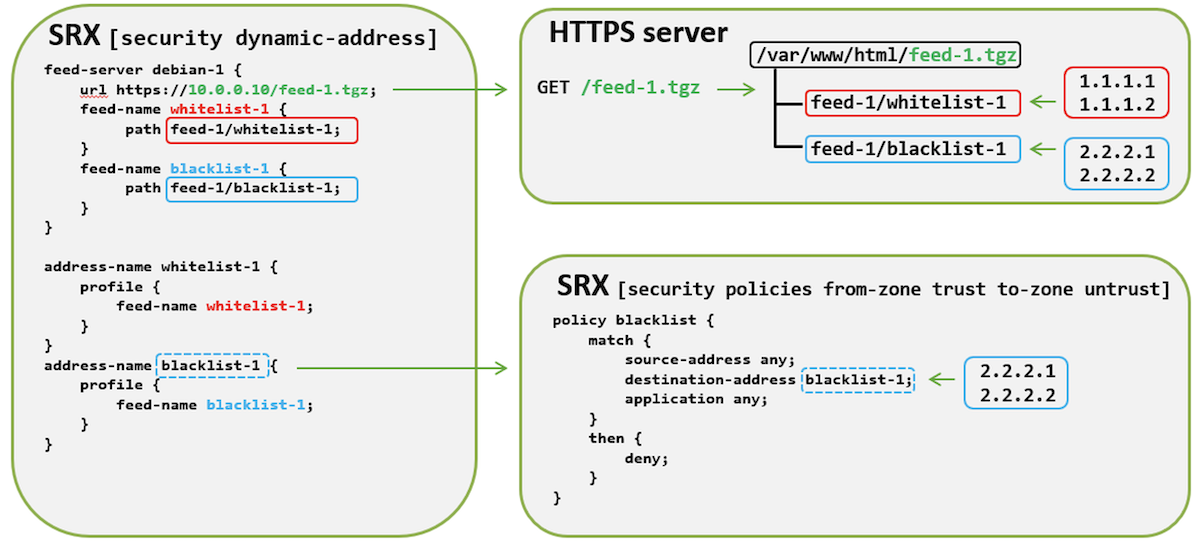
Specifically, access to the /32 IP prefixes 2.2.2.1 and 2.2.2.2, represented by the object blacklist-1, would be blocked. To implement any changes, the contents of the blacklist-1 file would need to be modified, and the feed-1.tgz file would need to be recreated. The object whitelist-1 serves solely as a second sample object. Scale and performance aspects are partially covered in Appendix 1.
Multiple feed formats are supported; a detailed description is available in the documentation. This article focuses on the bundle archive mode using .tgz archives. Most importantly, the following example types of IP addresses are supported:
- Single IP: 192.0.2.1, 2001:db8::1
- Prefix: 192.0.2.32/28, 2001:db8:1::/64
- IP range: 192.0.2.5-192.0.2.20, 2001:db8::5-2001:db8::20
Note - the skeleton configuration shown in the infographic is insecure because it lacks server certificate validation.
The Demo Setup
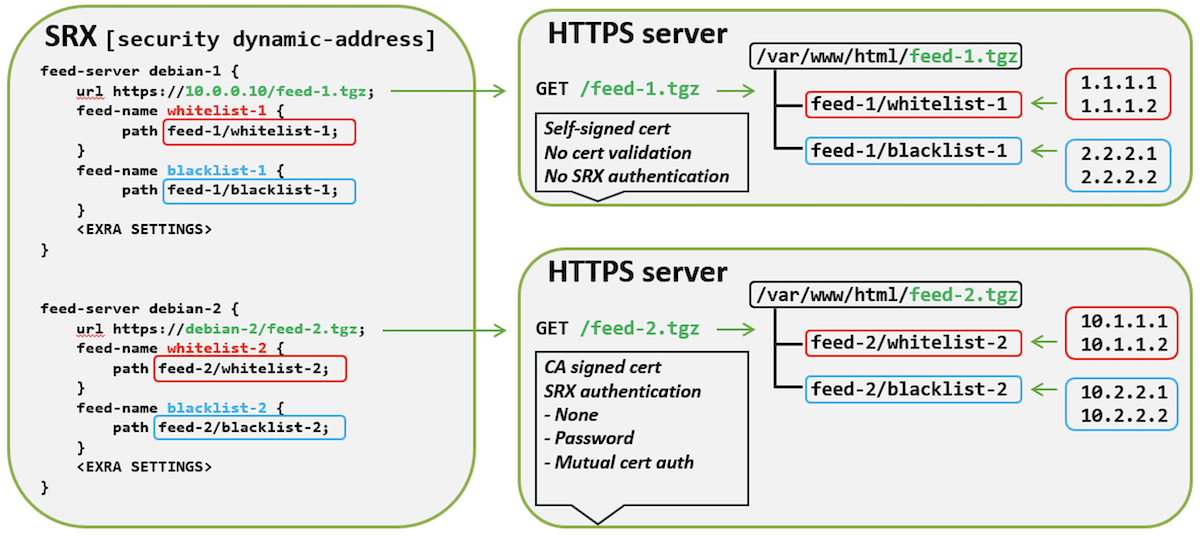
The demo setup covers the following scenarios:
- A simple feed server reachable by IP address, with no server certificate validation (using a self-signed certificate) and no SRX client authentication. This is the lab grade approach with the first Linux server hosting feed-1.tgz.
- Production grade, where the SRX validates the server certificate, incorporating the following authentication options for the SRX acting as an HTTP client:
- No SRX client authentication (anonymous access)
- SRX username-password authentication
- SRX mutual certificate authentication
Implemented with the second Linux server hosting feed-2.tgz.
A non-goal is to provide a perfect setup that automatically renews the SRX certificate, checks revocation status, or hardens the HTTPS feed server service, including high availability.
The prerequisites are a (v)SRX and a Linux system(s); specifically, this demonstration uses Debian Linux 13 and an SRX1600 with Junos 25.2R1-S1. Junos 25.2 is required for simple username/password authentication to the feed server.
Practical Example, The Lab Grade Way
The first step is to install a web server; nginx is one of the options. To install a lightweight version, including the ssl-cert utility for generating certificates, where the second command generates a sample "snakeoil" self-signed certificate used as the default demo certificate by Debian Linux:
Then, the following lines need to be uncommented in /etc/nginx/sites-enabled/default. The snakeoil.conf configuration line refers to the self-signed certificate and key generated by make-ssl-cert in the previous step:
nginx webserver service restart:
To test whether nginx is serving requests, the openssl s_client tool is handy for connecting to TLS-enabled sockets. The output should look similar to the one below:
To create bundle archive style feed data for ingestion by the SRX:
Ideally, use the 2nd terminal window to follow the logs:
Then, on the SRX, the following configuration:
- Sets up the feed server by its IP address, overrides the default update interval of 5 minutes, and adjusts the holding period for feed contents (if the feed cannot be reached) from one day to a week.
- Additionally, it defines the address objects whitelist-1 and blacklist-1, linking them to the feed contents as explained in the infographics above.
Upon committing the configuration, the status of the feed server and its feeds on the SRX can be viewed using the following command:
Dynamic IP addresses can be viewed on the SRX using the following command:
The following entries should appear on the console tailing access.log. The first log entry shows the data fetch, while the subsequent two entries indicate probes to determine whether the file has changed:
On the SRX, feeds are processed by the ipfd process, and the related logs provide visibility into the events:
To validate whether updates to the feed contents are being propagated to the SRX:
According to the nginx logs, SRX detected change of the file and did a new download:
Also reflected in the SRX logs:
And in the dynamic address listing:
Finally, to apply the dynamic-object in the firewall policy:
Practical Example, The Production Grade Way
In this more complex example, the demo setup will use a demonstration PKI to closely resemble a real-world scenario. In the first stage, the SRX will access the feed server anonymously while validating the server certificate. The next stage will implement username and password authentication, followed by mutual certificate authentication as the final stage.
Foundation setup with server validation
As a first step, the PKI needs to be set up. While a professional PKI should be considered for real-world applications, for demonstration purposes, a simple OpenSSL wrapper called SRX_VPN_demo_CA, originally designed to support SRX PKI-based VPN demos, will suffice. To install and set up the CA on a Linux host (e.g., the feed server itself):
Using the sed line editor, the default certificate subjects need to be altered in the next step.
- The first line swaps srx.domain.tld with the string debian-2 in a file that lists the server certificates to be generated (cert_list_server), which will then be used by the SRX as the hostname for reaching out to the feed server.
- The second sed line deletes the default sample record for user2 and replaces user1 with the string srx-1 in the cert_list_user file (to be used in the mutual certificate authentication stage).
The following commands initialize the CA key and certificate with the subject IPFD_CA, valid for 10 years, along with the keys and certificates for the SRX and nginx, each with subject defined in the previous step and valid for two years:
Similar to the first example, the first step on the Linux machine is to install a web server; this time, however, it will be done without a snakeoil sample self-signed certificate and will include the apache2-utils package for creating HTTP authentication credentials:
Place the CA key, certificate, and key into the corresponding locations for use by nginx. The files are located in the CA sub-folder within the SRX_VPN_demo_CA folder. The CA certificate will be used by the webserver in the final stage for mutual client authentication:
A basic good practice is to restrict access to the private key so that only the root user has permission to access it:
Then, the following lines need to be uncommented in /etc/nginx/sites-enabled/default. However, instead of uncommenting snakeoil.conf, a custom include line needs to be added:
The contents of /etc/nginx/snippets/IPFD.conf need to point to the certificate and private key generated in the PKI setup step:
To complete the web server setup, restart the service using the following command:
To validate if the TLS socket is enabled, again the openssl s_client tool is helpful:
Initial feed data setup:
Ideally in the 2nd terminal window logs to be followed:
On the SRX, before importing the CA certificate, the CA profile needs to be configured.
Note - no revocation checking is enabled for the sake of simplicity, although the demonstration CA can create a Certificate Revocation List (CRL).
Creating the CA profile is followed by loading the CA certificate. Before doing so, the cacert.pem file from the CA sub-folder located in the SRX_VPN_demo_CA folder needs to be uploaded to the SRX.
It is good practice to validate the CA certificate on the SRX to ensure its integrity and proper configuration. This can be done using the following command:
Note -- if a non-trusted issuer is used (e.g., if the CA certificate has not been loaded onto the SRX), the following log message would occur during certificate validation:
Then, on the SRX, the following configuration:
- Sets up the feed server by its hostname recorded in static-host-mapping (this is needed unless it is present in DNS).
- Configures SSL initiation profile with trusted CA referenced in the feed-server configuration.
- Overrides the default update interval of 5 minutes and defines the holding period for feed contents if the feed cannot be reached, adjusting it from one day to a week.
- Defines the objects whitelist-1 and blacklist-1, linking them with the feed contents as explained in the introduction's infographics.
- Server certificate validation will be enforced by referring to the trusted CA and ensuring that the subject's common name or subject alternative name matches the configured feed server name.
The dynamic IP addresses can be viewed on the SRX using the following command:
Note -- in case of issues, in addition to reviewing the logs, use show security dynamic-address summary command on the SRX to display status of dynamic addresses.
The following entries should appear on the console that was previously used to tail access.log. The first log entry indicates the fetch of the data, while the subsequent two entries represent probes to check whether the file has changed:
Note -- to trigger as certificate attribute validation issue, a simple test can be performed by changing the hostname from debian-2 to debian-3 in both the static host mapping and the feed URL:
Sample error logs after changing the hostname:
SRX Password Authentication
With Junos 25.2R1, basic HTTP authentication can be used by the SRX acting as the client. To configure the web server, the following needs to be added to /etc/nginx/sites-enabled/default:
Username and password creation, where -c creates a new file and -b uses the supplied password after the username srx:
To complete the web server adjustment, restart the service using the following command:
Since then, the SRX won't be able to reach the feed, which will be reflected in the logs as follows:
SRX side configuration expanded by username and password setting:
After the settings in the previous step, the feed data is successfully fetched:
SRX mutual certificate authentication
To enhance security, access to a particular folder on the web server can be protected by requiring the client to present its certificate during the TLS handshake. A granular approach allows this requirement to be optional and enforceable on specific folders, as shown in the example of /etc/nginx/sites-enabled/default below. The password authentication mentioned in the previous paragraph can either be left intact or commented out; the former option enables both password and mutual certificate authentication.
Upon restarting nginx, the SRX will be unable to access the feed data, and the following logs will appear:
In the next step, the srx-1-cert.pem and srx-1-key.pem files located in the CA sub-folder within the SRX_VPN_demo_CA need to be uploaded to the SRX, followed by loading them to the SRX storage:
Similarly to CA certificate validation, the device certificate can be validated to ensure its integrity and proper configuration:
Then, the SRX configuration needs to be expanded to include a reference to the client certificate in the SSL initiation profile, which was previously used only for validating the server certificate issued by a specific CA:
Upon committing the changes, the feed contents can be fetched again, this time with mutual certificate authentication enabled between the SRX and the web server:
Tunables
Session-scan
The SRX is capable of reconciling existing sessions when addresses are added to the feeds (not removed). To enable this functionality:
Session scanning works with policies that have a deny or reject action. For instance, when removing an address from whitelist-1 (which permits otherwise blocked HTTP access), that address needs to be added to blacklist-1 (at least temporarily, until all sessions are removed) so that the reject-http rule is triggered:
Routing-instance
In some cases, the feed server may be reachable through a custom routing instance instead of the master inet.0 instance. To accommodate this situation, the following hidden configuration stanza exists. The format is table.inet without the typical trailing .0 character. For example:
Conclusion
Dynamic IP objects on SRX platforms provide a simple yet powerful mechanism for automating security policies in environments with frequent address changes. By leveraging feed servers that deliver IP prefixes, administrators can maintain flexible, scalable rule bases without manual intervention or potentially disruptive commit operations. While the lab grade approach offers simplicity, implementing certificate validation and authentication ensures a more secure, production-ready setup. Performance tests confirm that SRX devices can handle large-scale dynamic updates efficiently, but careful planning and validation remain essential for large-scale deployments. Ultimately, dynamic IP objects enable faster policy adaptation, improved operational agility, and a stronger security posture in modern, dynamic networks.
Appendix 1 -- Scale and Performance
The scale of the IP dynamic-address objects is dependent on the SRX platform. For example, here are three sample SRX platforms:
| Platform | Junos | Max IPv4 | Max IPv6 | Servers | Objects | Feeds |
|---|---|---|---|---|---|---|
| SRX300 | 23.4R2 | 600k | 300k | 256 | 256 | 256 |
| SRX1600 | 25.2R1 | 1M | 500k | 5k | 5k | 5k |
| SRX4700 | 25.2R1 | 1M | 500k | 5k | 5k | 5k |
The maximum scale data can be retrieved from /var/log/ipfd. However, if a large scale is being considered, it is always recommended to validate using testing equipment. IPv4 and IPv6 scale is logical AND. Below is a sample of raw scale data from the ipfd log for SRX1600 running Junos 25.2R1-S1.4:
The time-series chart below shows indicative measurements for dynamic IP address load and unload operations in the SRX PFE (SRX1600, Junos 25.2R1-S1)
- In the synthetic test, 500,000 IPv4 endpoints were sending 500,000 Packets Per Second (PPS) to another set of 500,000 endpoints (1:1 communication with 1 PPS per endpoint pair).
- The red line represents the transmit rate, while the blue line represents the receive rate.
- At approximately 3:14 (when statistics were cleared), the SRX downloaded, according to the logs, a dynamic address object containing the 500,000 IPv4 /32 prefixes used as source addresses for allowing.
- At around 3:54, the receive rate matched the transmit rate, indicating no packet loss (all the objects became effective in the PFE).
- Conversely, when the 500,000 IP addresses were moved from a whitelist to a blacklist (with session scan enabled), it took approximately 50 seconds to drop all communication.
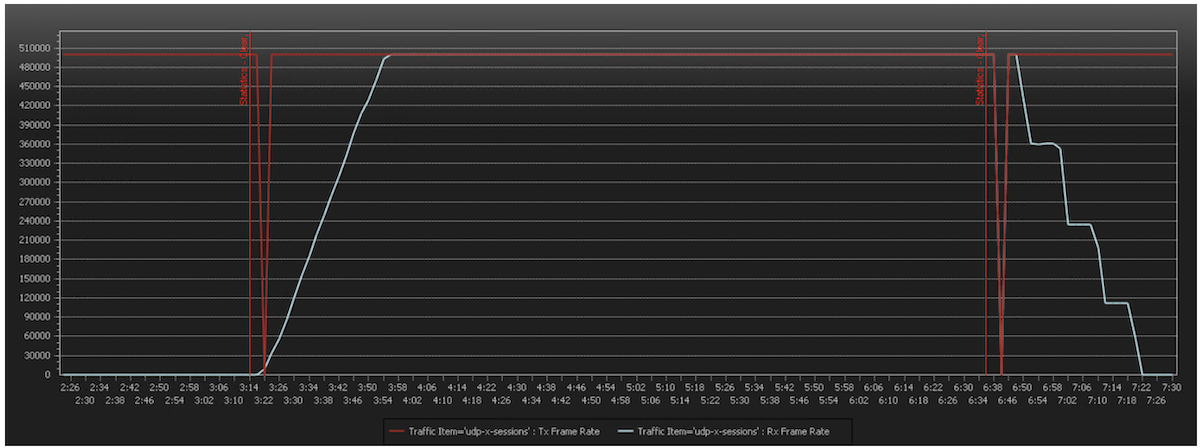
Note - the time to load or unload dynamic objects in such a test is impacted by the packet rate causing PFE load, even if the traffic is subjected to drops (the drop-flow feature was disabled to avoid interfering with the traffic getting allowed). Once traffic is permitted, an effective connection in the session table is established for each of the permitted flows, up to 500,000 concurrent connections.
Useful links
- https://www.juniper.net/documentation/us/en/software/junos/security-policies/topics/topic-map/security-policy-configuration.html#id-dynamic-address-groups-in-security-policies
- https://www.juniper.net/us/en/dm/download-next-gen-vsrx-firewall-trial.html
- https://www.debian.org/distrib/
- https://nginx.org/
Glossary
- CA: Certificate Authority
- CLI: Command Line Interface
- CRL: Certificate Revocation List
- DNS: Domain Name System
- HTTP: Hypertext Transfer Protocol
- HTTPS: Hypertext Transfer Protocol Secure
- IP: Internet Protocol
- PFE: Packet Forwarding Engine
- PKI: Public Key Infrastructure
- PPS: Packets Per Second
- SSH: Secure Shell
- SSL: Secure Socket Layer
- TLS: Transport Layer Security
- UDP: User Datagram Protocol
- VPN: Virtual Private Network
Acknowledgements
I would like to thank Nicolas Fevrier for overseeing the Tech Posts site and handling all the publishing tasks. I also want to acknowledge all the colleagues who provided valuable feedback, namely Mark Barrett, Steven Jacques and Laurent Paumelle. A special thanks goes to the vSRX/SRX development and product teams for delivering the Swiss Army knife of security and networking! Finally, things would be complicated without all the brilliant open-source software.